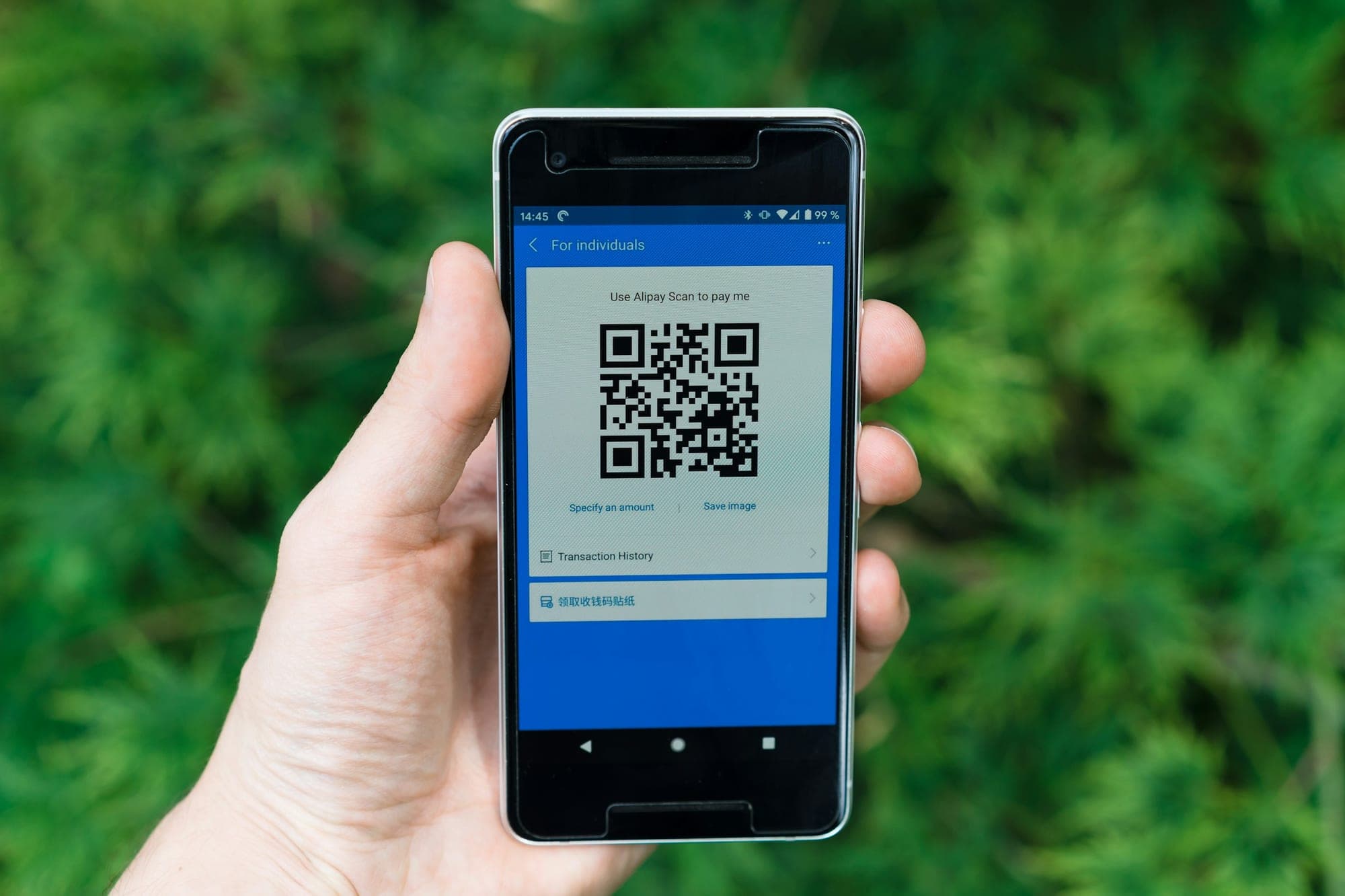
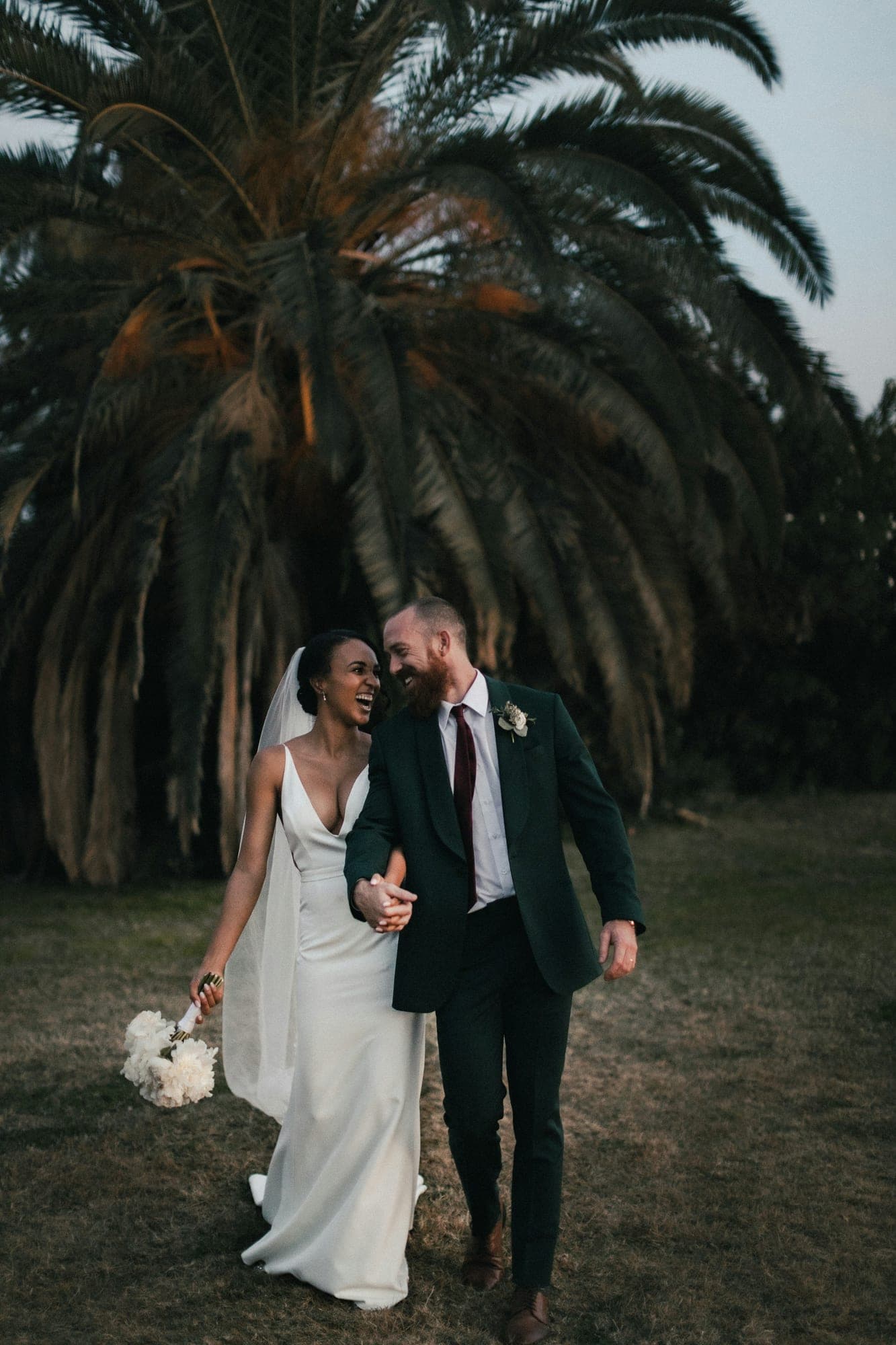
In the style of your album
The printable card uses your album’s colours, heading font and cover photo, so it sits naturally next to the rest of your wedding stationery.
Scan to see our photos
Print a sign for the entrance and small cards for every table. Guests scan the code with their phone camera and land on your wedding album, where they look through the photos, sign the guestbook and follow the live slideshow.
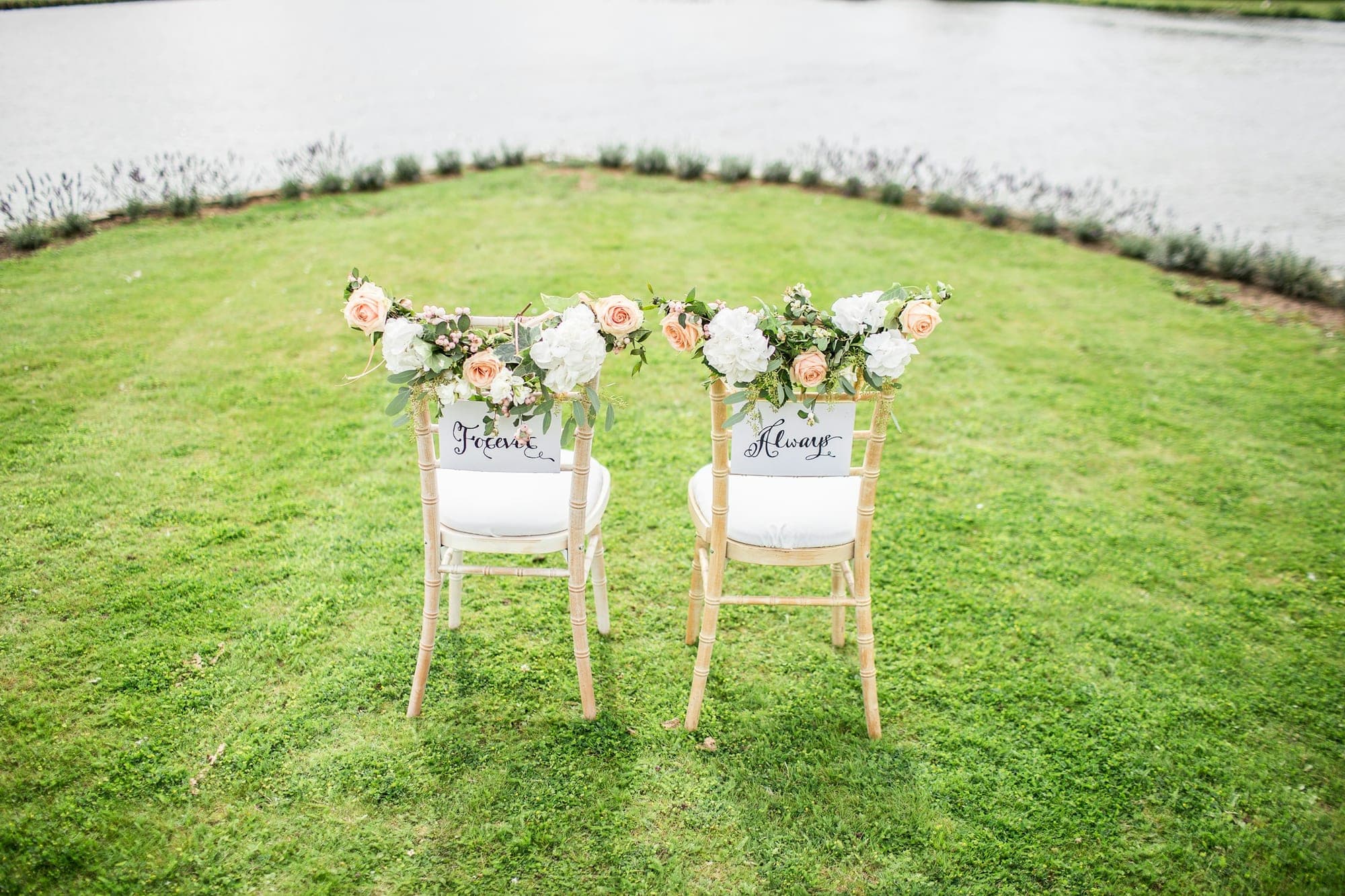
Every part of the story
A good album follows the shape of the day. Use these as a starting point for choosing and ordering your photos.
A practical guide
Say what the code opens. The ImageAlbums card prints “Scan to see the photos” above your album’s title, the wedding date and the link written out for anyone whose camera won’t scan. If you design your own sign around the downloaded code, keep the line short and specific, such as “Scan to see our photos” or “Our wedding album: scan with your camera”, and tell guests what they will find there: the photos, a guestbook for their messages and the live slideshow.
Put the code where guests stand still with a phone in hand: the welcome sign, every dinner table, the bar, the seating chart and the guestbook table. A card in a frame or a small stand scans more easily than one lying flat. On a table card, make the code at least 3 cm across; on an entrance sign that people read from a few steps away, make it much larger.
Keep the code itself on plain white, even when the rest of the sign is coloured; the printable card does this for you. Print one card first, scan it with an iPhone and an Android phone from arm’s length, then print the rest on matte card stock. Our guides to QR code table cards and to QR codes for wedding photos have more ideas for wording and placement.
Why ImageAlbums
Your album opens in any browser, looks right on phones and stays out of search engines unless you choose otherwise.
The printable card uses your album’s colours, heading font and cover photo, so it sits naturally next to the rest of your wedding stationery.
Print one large card for an easel or frame, or four table cards on one A4 sheet, with the code in black or one of four colours.
The code opens your album link, so cards printed weeks before the wedding still work after you add the photos.
How it works
Pick the wedding look, add your names, the date and a cover photo. The rest of the photos can follow later.
Open the printable card from the Share panel, choose one large card or four per sheet, a code colour, and the album theme or a plain style.
Put the sign at the entrance and a card on every table, and scan one yourself before the guests arrive.
One short line that says what the code opens, such as “Scan to see our photos”. Our printable card adds the album title, your wedding date and the written link underneath.
No. The code opens your album for viewing. Guests can look through the photos, download them if you allow it, sign the guestbook and watch the live slideshow, but only you add photos.
Yes. The code points to the album link, which stays the same when you add photos or change the design. Publish the album with a cover photo, print the cards, and add the photos during or after the wedding.
On the free plan the card carries a small “Made with ImageAlbums” line. With Pro or an Event pass it is removed, or replaced with your own name.
Explore more occasions
Create your wedding album, print the sign and let every guest find the photos from their seat.
Start your album